
Microsoft Changes Windows Update After 7,621 User Complaints — Pause, Restart and Shut Down on Your Terms

GigaNectar Team

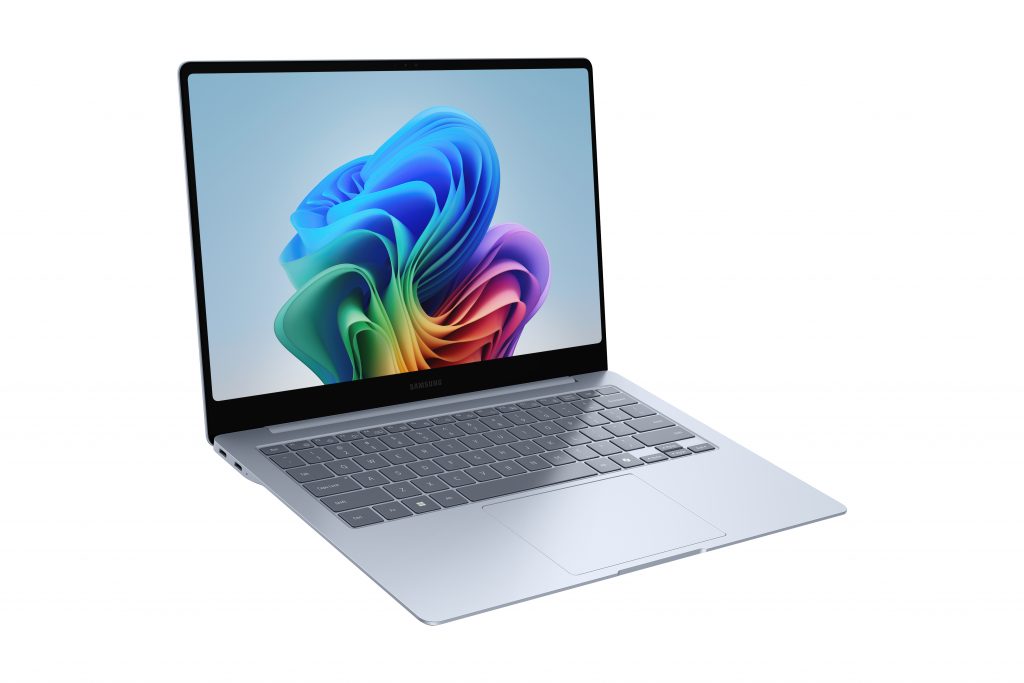
Samsung Galaxy Book4 Edge laptop open on a white surface, viewed from the top-left angle, running Windows 11
Windows Update — April 2026

Windows Finally Lets You Own Your Restarts — Here’s What Changed

For years, Windows users have lost work, interrupted calls, and missed deadlines because an update decided to kick in at the worst possible moment. Microsoft has now addressed these complaints directly. In a blog post published April 24, 2026, Windows Insider team author Aria Hanson confirmed that after reading over 7,621 pieces of direct user feedback, Microsoft is rolling out concrete changes to how Windows handles updates — starting with the Dev Channel and the new Experimental channel.

The changes span four areas: skipping updates during setup, pausing updates indefinitely in 35-day blocks, restarting or shutting down without triggering an update, and a clearer view of what updates are pending. These are addressed alongside Microsoft’s ongoing work under its Secure Future Initiative — which continues to drive improvements to how fast and reliably security updates are delivered.

7,621
User feedback items reviewed by Microsoft
35
Days per pause window — extendable with no hard limit
4
Power menu options: Restart, Shut Down, Update+Restart, Update+Shut Down
Monthly restart — drivers, .NET & firmware now aligned to Patch Tuesday

Four Changes, One Goal: Updates on Your Clock

Microsoft’s official Windows Insider Blog post breaks the rollout into four buckets — more control, fewer disruptions, improved security reliability, and a cleaner power menu. Use the tabs below to explore each one.

⚙️

Explore the New Windows Update Controls

⏭️
Skip Updates at Setup
During the Windows out-of-box experience (OOBE), you can now skip updates and land on the desktop immediately. Setup used to force downloads before first use. Note: skipping means security patches won’t apply until you manually trigger an update. This does not apply to commercially managed devices.
📅
Pause Up to 35 Days — Repeatedly
A new calendar picker in Windows Update settings lets you pause updates for up to 35 days at a time, choosing a specific date. At the end of that window, you can extend the pause again — with no hard cap on extensions. If you don’t re-pause, updates resume on their own.
🔍
Smarter Driver Update Names
Driver updates now include the device class in their title — display, audio, battery, HDC, or extension. Previously, driver updates often had near-identical names, making it impossible to know what was actually about to change on your system.
“Disruption caused by untimely updates and not enough control over when updates happen.”
— Aria Hanson, Windows Insider Team, Microsoft Blog, April 24, 2026
🧪 Try the Pause Simulator
See how the new 35-day pause system works. You can extend it as many times as you need — just like the behaviour described in Microsoft’s official post.
Updates Active
Windows will check for and install updates normally.

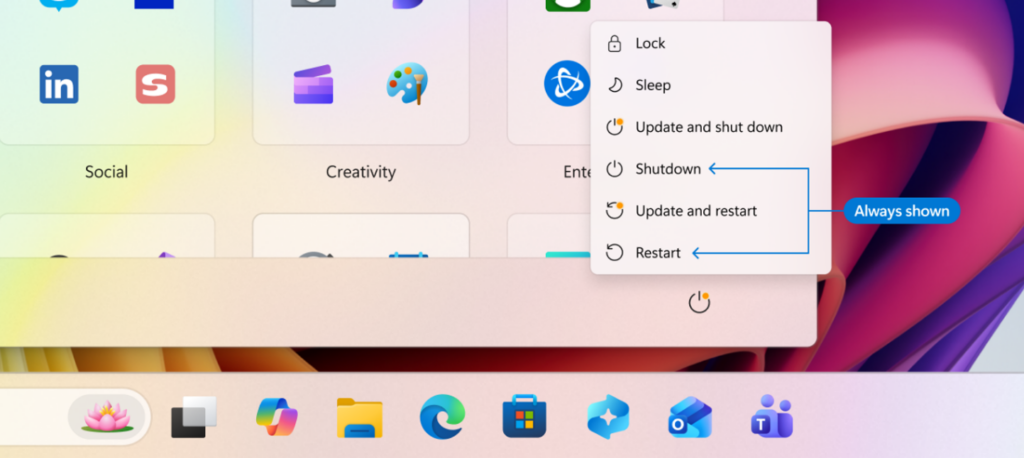
One of the most requested changes: the ability to simply shut down or restart without triggering an update. The new power menu cleanly separates power actions from update actions, giving you four explicit options at all times. When you pick Restart or Shut Down, Windows does exactly that — no update install in the background. After restart, Windows will also attempt to restore previously open apps faster.

❌ Before
🔄 Update and Restart
⏻ Update and Shut Down
Restart (no update)
Shut Down (no update)
✅ After
🔄 Restart New
⏻ Shut Down New
🔄 Update and Restart
⏻ Update and Shut Down
“Restarting or shutting down your PC should always be simple, predictable, and on your terms – even with updates waiting to be installed.”
— Microsoft Windows Insider Blog, April 24, 2026

Multiple reboots per month — one for a driver update, another for .NET, another for firmware — have been a recurring complaint. Microsoft is now coordinating all of these with the monthly Windows quality update, targeting a single monthly restart for most retail users. Windows Insiders on Experimental and Beta channels will still see weekly updates; retail users not opted into early tracks will see monthly reboots.

📦
Unified Monthly Update
Driver, .NET, and firmware updates are now coordinated with Patch Tuesday — the monthly Windows quality update. The aim is a single monthly restart for most users, down from multiple mid-month interruptions.
⬇️
Background Downloads
Updates download quietly in the background and hold for a coordinated installation. They won’t install until the scheduled quality update window — unless you manually go to Settings → Windows Update and trigger them early.
📋
“Available Updates” Section
All pending updates are now grouped under a single collapsible section in Settings. You can install all of them or pick specific ones — giving you full visibility before anything changes on your device.

More control over update timing comes alongside continued improvements in how reliably updates install. These are part of Microsoft’s Secure Future Initiative. Microsoft still recommends taking security updates shortly after release — the new pause and delay tools are for convenience, not for avoiding updates indefinitely.
Faster Update Downloads
Microsoft reports steady progress in reducing both download size and the time needed to apply an update. This is most useful for devices with limited connectivity or that are rarely online — improving update success rates for those users.
🔧
Automatic Recovery for Failures
When an update fails to install, Windows will now automatically attempt to recover in real time — no user input required. Some updates may take slightly longer to complete, but the overall success rate is higher as a result.
🛡️
Secure by Default
Microsoft’s position is unchanged: take security updates shortly after they’re released. Pausing indefinitely leaves devices without the latest patches. The new controls are designed around flexibility, not as a substitute for keeping your device protected.
Early 2026
OOBE Skip Feature Added
Microsoft added the option to skip updates during initial device setup — letting users reach the desktop immediately instead of waiting for update downloads during first-time configuration. Confirmed in the April 24 blog post as an existing change being extended further.
March 2026
Microsoft Announces Update “Pain Point” Fixes
Microsoft publicly committed to a set of improvements addressing the most common update frustrations, citing feedback around untimely restarts and lack of scheduling control. The April rollout was referenced by Aria Hanson as the fulfilment of that March commitment.
April 24, 2026
Official Rollout Begins — Insider Channels
Aria Hanson published the official Windows Insider Blog post confirming all four changes. Rollout began for the Dev Channel and the new Experimental channel of the Windows Insider Program.
Coming Soon
Stable Channel & Commercial Rollout — TBA
Microsoft confirmed it will share more on how these features reach users on the stable, shipping version of Windows 11, as well as details on admin controls for commercial customers. No date was given at the time of the April 24 post.
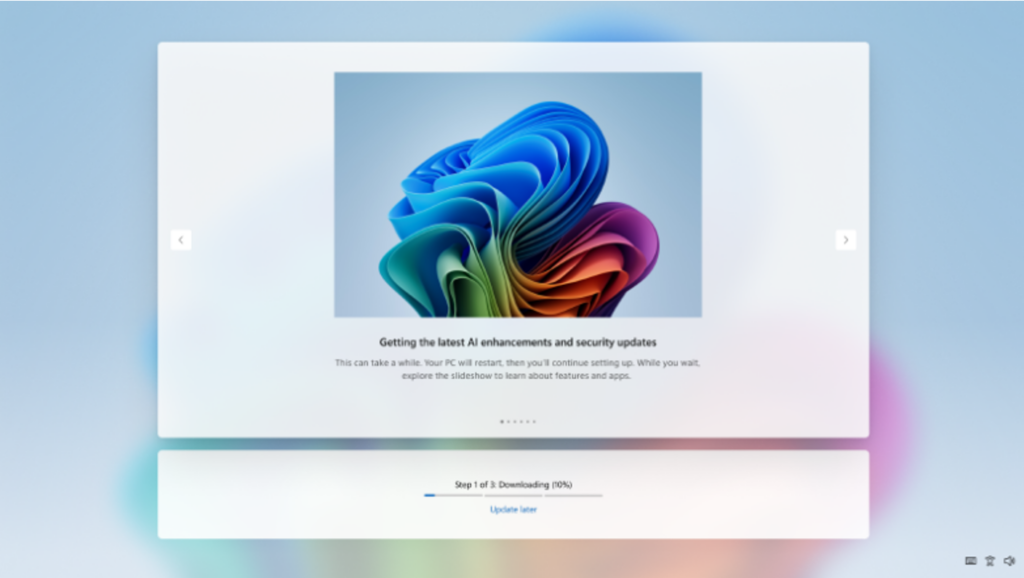
Windows 11 out-of-box experience showing option to skip updates and set up later
The updated Windows 11 OOBE screen now shows the option to skip updates and get to the desktop first. Source: Microsoft Windows Insider Blog, April 2026 — Proprietary.

The changes were described by Aria Hanson as a direct result of user feedback. Two themes came through consistently across the 7,621 feedback items reviewed: updates disrupting work at the wrong time, and not having enough say over when they happen. For anyone tracking Microsoft’s recent direction on AI and platform development, this update sits alongside a broader push — covered in our piece on the SpaceX Cursor acquisition that Microsoft passed on — where platform control and user agency are increasingly central to how Microsoft is positioning Windows.

The rollout currently applies to the Dev Channel and the new Experimental channel of the Windows Insider Program. For the Experimental and Beta channels, weekly updates will continue. Retail users not opted into early update tracks will move to monthly reboots under the unified update schedule. Microsoft has not confirmed a date for when these changes will reach the stable, shipping version of Windows 11 or commercial customers.
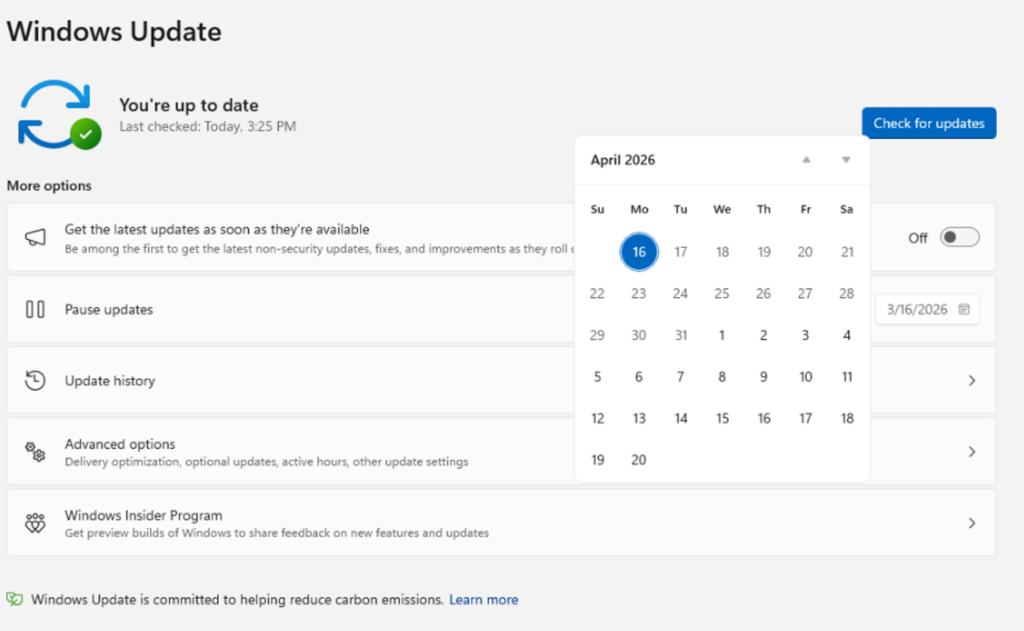
Windows Update settings showing the ability to extend update pause end date
The new Windows Update pause controls, showing the option to extend the pause end date repeatedly. Source: Microsoft Windows Insider Blog, April 2026 — Proprietary.
New Windows 11 power menu showing Restart and Shut Down as separate options from Update and Restart
The updated Windows 11 power menu, with standard Restart and Shut Down now separated from update-triggered actions. Source: Microsoft Windows Insider Blog, April 2026 — Proprietary.

What Was Covered

This piece covered the Windows Update changes announced by Microsoft on April 24, 2026, through the Windows Insider Blog. The four changes — update pause controls, OOBE skip, power menu separation, and a unified monthly restart schedule — were discussed as rolling out first to the Dev Channel and Experimental channel. The piece also covered the automatic recovery feature for failed installs and the addition of device class labels to driver update titles. Microsoft noted that details for stable-channel users and commercial admins will follow.

For more on what’s happening across the AI and tech space alongside this Windows update, see recent coverage on OpenAI GPT-5.5 and agentic coding, and the Xiaomi MiMo v2.5 Pro open-source AI rankings.


Leave a comment